
Docs / AI options and local setup
AI options and local setup
This guide covers the ways Sei can run its AI: Sei Cloud, your ChatGPT plan, your own API key, or fully on your computer with Ollama and local voices.
All of these work in the normal Sei app you download. You don't need to compile anything. Extras Sei needs, like local voices, download from inside Sei with one click. The only outside step is installing Ollama, if you want local AI models.
Which one should I use?
| Option | Best for | Cost |
|---|---|---|
| Sei Cloud | Most people. Works right away. | Free plan, or a paid plan for more use. |
| ChatGPT plan | People who pay for ChatGPT Plus or Pro. | Counts toward your ChatGPT plan. |
| Your own API key | People with an account at an AI provider. | You pay the provider. |
| Ollama (local) | Privacy, or using Sei offline. | Free. Needs a strong computer. |
To switch, open Settings > AI and set Backend to Cloud or My key.
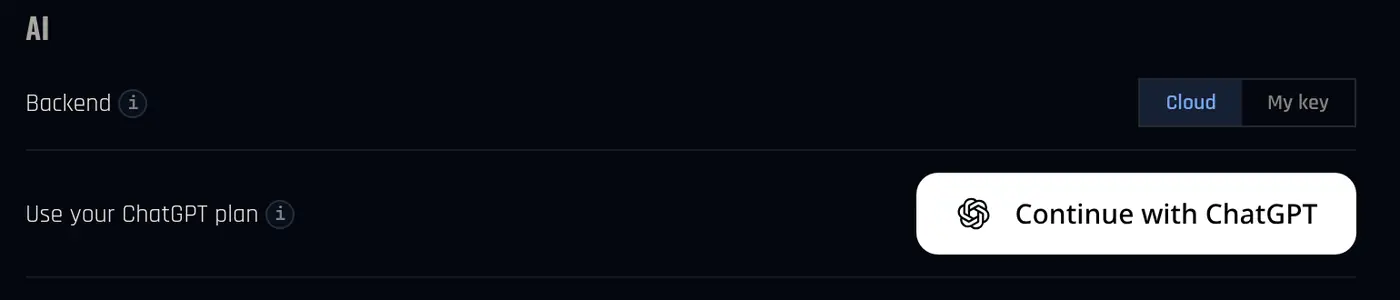
Sei Cloud (the default)
Sei Cloud is on when you sign in. Chat, voice, screen sharing and games all work without any setup.
Every account starts on the Free plan, which has a weekly usage allowance. The paid plans, Quest and Party, give you more. To see your usage or change plan, click the Plan button in the left bar.
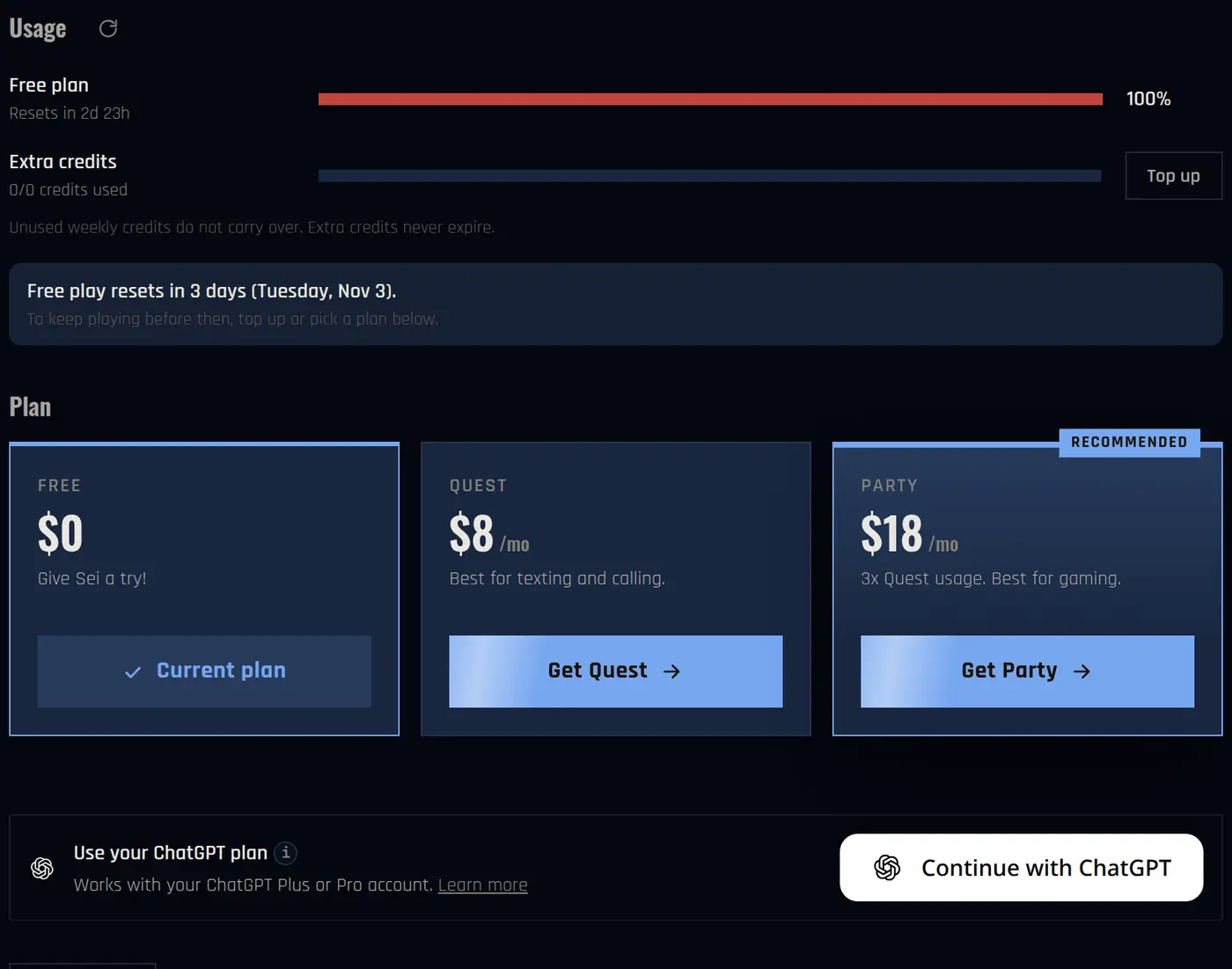
- Your weekly usage resets every week. Unused weekly usage does not carry over.
- You can buy extra credits with Top up. Extra credits never expire.
- If you hit the limit, Sei shows Usage limit reached. You can top up, upgrade, or wait for the reset.
Use your ChatGPT plan
If you pay for ChatGPT Plus or Pro, Sei can use your plan instead of Sei's usage.
- Open Settings > AI and click Continue with ChatGPT next to Use your ChatGPT plan.
- Sign in to ChatGPT in the browser window that opens.
- Back in Sei, click Use ChatGPT plan and confirm.
Usage then counts toward your ChatGPT plan, not Sei's plan or credits. It works on any Sei plan, including Free. You can also pick Continue with ChatGPT when you first sign in to Sei.
Use your own API key
If you have an account with an AI provider, you can use your own key. Sei sends your messages straight to that provider, and you pay them directly.
Supported providers: Anthropic, OpenAI, DeepSeek, Qwen (Alibaba), Google Gemini, Grok (xAI), OpenRouter, and Ollama for local models.
- Open Settings > AI and set Backend to My key.
- Choose your Provider.
- Next to API key, click Set and paste your key.
- Click Choose model and pick a model.
- Click Test next to Connection. It should say Working.
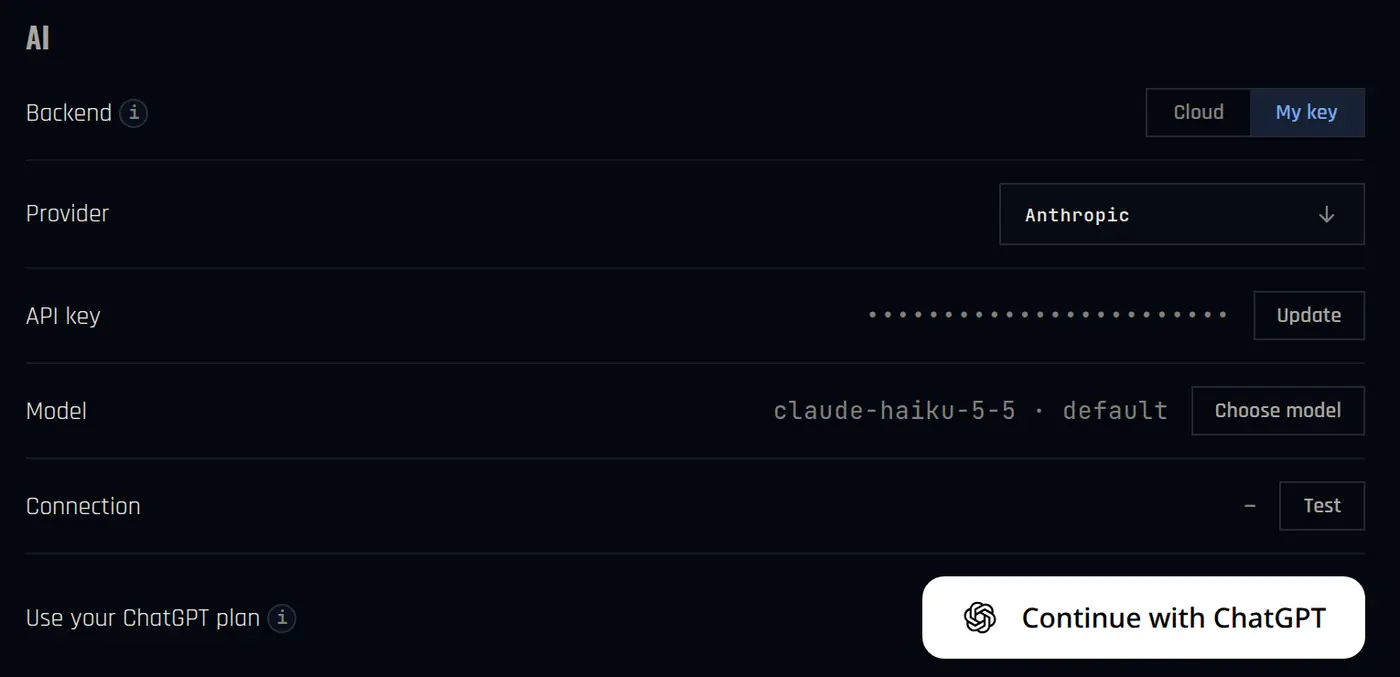
Pick a model that can see. Screen sharing and Draw! need a model with vision. Sei marks models without it as no vision.
Don't want a Sei account? Choose Use my own API key during setup, or click Continue locally at the bottom of the sign-in screen.
Run fully local with Ollama
Ollama runs AI models on your own computer. Nothing you say leaves your machine, and you don't need an API key.
- Install Ollama from ollama.com and open it.
- Download a model. For example, open a terminal and run
ollama pull qwen3. - In Sei, open Settings > AI, set Backend to My key and Provider to Ollama.
- Click Choose model and pick the model you downloaded, then Test the connection.
Sei looks for Ollama at its normal address on your computer, so there is nothing else to set.
Pick a model that can use tools. Your companion needs tools to talk and act in games. qwen3 works. For screen sharing and Draw!, use a model that can also see images, like qwen3-vl.
Local models are slower and less capable than cloud models, and how well they run depends on your computer.
Local voices and voice recognition
When you use your own key or Ollama, you also choose how voice works. Open Settings and find Voice.
- Voices: ElevenLabs (paste your ElevenLabs key in the ElevenLabs key row) or Local. For local voices, click Download next to the language you want: English voices (about 78 MB) or Chinese voices (about 30 MB).
- Voice recognition (how Sei hears you): ElevenLabs Scribe (needs the same key), Local Whisper (works offline, downloads a small model on your first call), or SenseVoice (about 158 MB, best for Chinese).
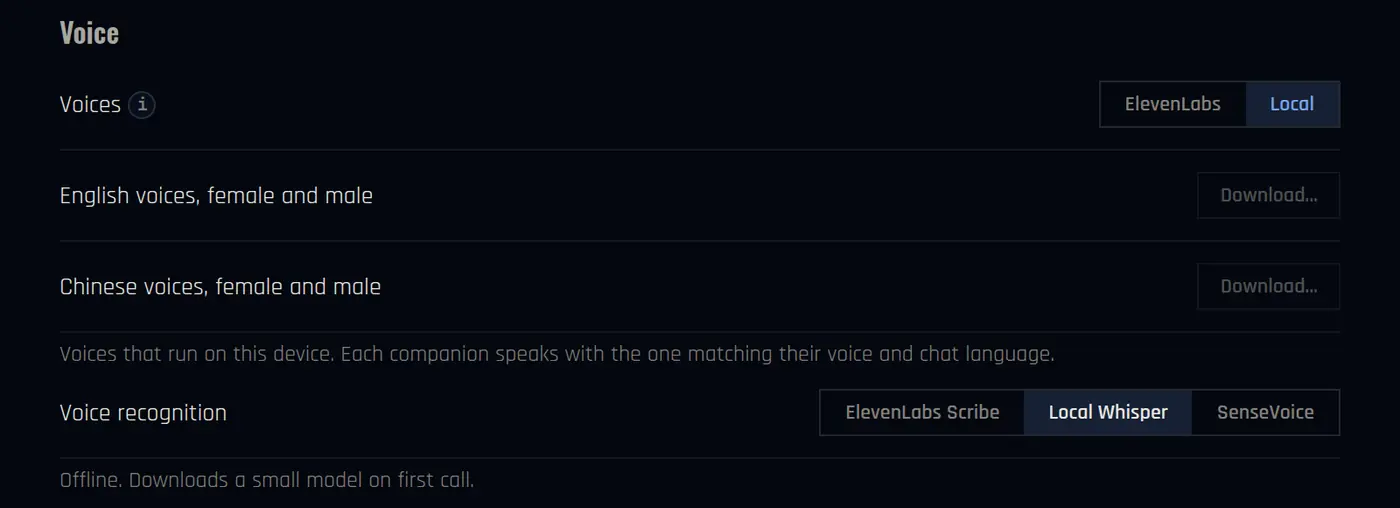
With Ollama, local voices and Local Whisper, Sei runs fully on your computer.
Where your data goes
- Memories are always stored on your computer.
- Sei Cloud: your messages go through Sei's server to the AI.
- Your own key: your messages go straight to the provider you chose.
- Ollama: everything stays on your computer.
To turn off usage analytics, go to Settings > Appearance and switch off Usage analytics.