
Docs / Play games together
Play games together
This guide covers playing games with your companion: Minecraft, Stardew Valley, Don't Starve Together, chess, Draw!, and watching any other game with Backseat.
Pick a game
- Open a chat with your companion.
- Click the gamepad icon (Play together) at the top right.
- Pick a game.
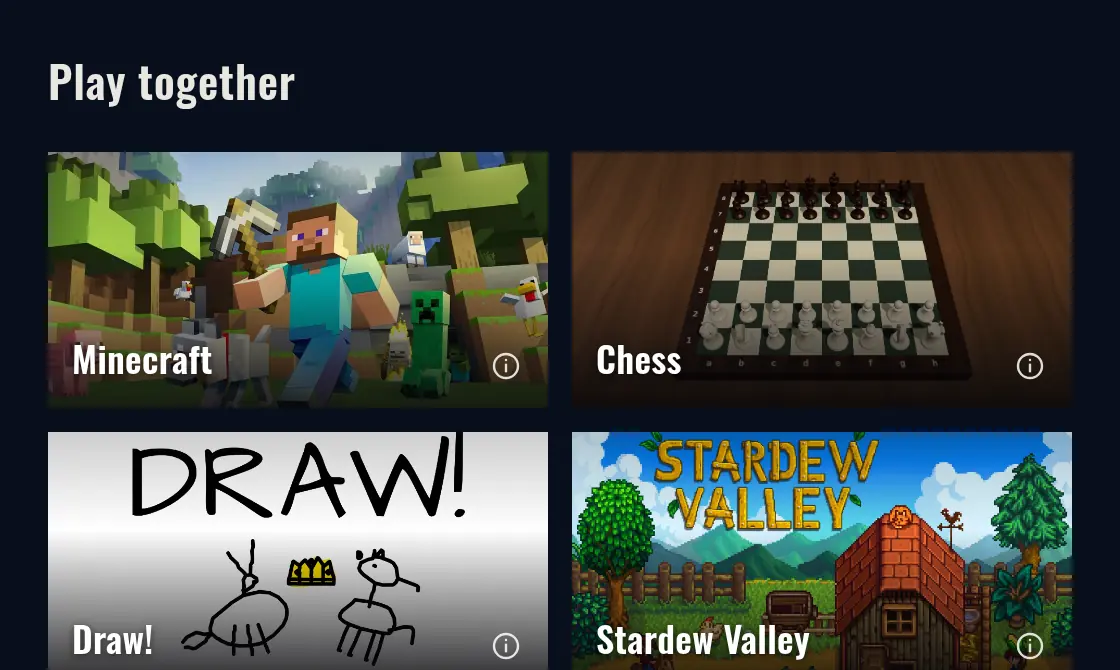
The first time you pick some games, Sei asks to download support for that game (for example about 50 MB for Minecraft). This happens once.
Don't see your game? Click Suggest a game at the end of the list to tell us.
Minecraft
Your companion joins your Minecraft world as a real player. It can follow you, explore, gather, mine, craft, smelt, build, make a shelter, fight, give you items, eat, sleep and use chests. Talk to it in Minecraft chat, in Sei, or on a voice call.
What you need
- Minecraft: Java Edition on the same computer as Sei. Bedrock, console and mobile are not supported.
- A version from 1.8 to 26.3. Most versions in that range work. In Sei, click Which versions? for the full list.
- A singleplayer world. Worlds that need mods to join (Forge, NeoForge, or mods like Xaero's Minimap) don't work.
One-time setup
- Pick Minecraft in Play together and click Set up.
- In Set up Minecraft for Sei, click Begin. It takes about a minute.
- When it says All set, click Start Minecraft.
Setup adds a separate Sei profile to your Minecraft Launcher, so your companion's skin shows in your game. Your own profiles are not changed. Skins show on Minecraft 1.14 and newer.
Every time you play
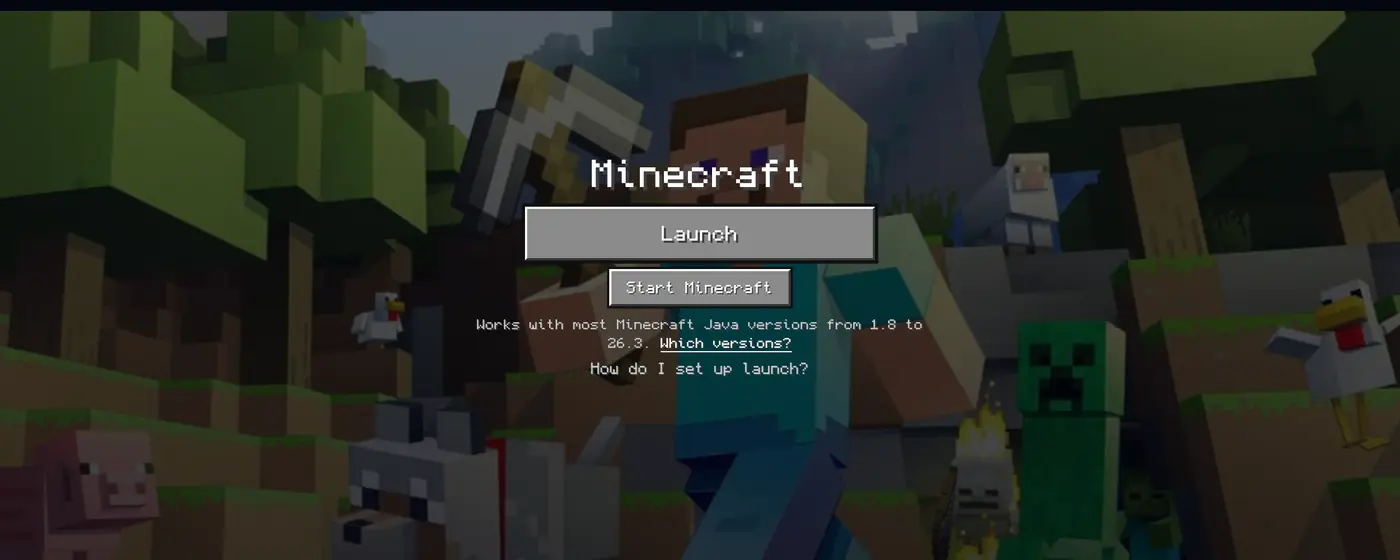
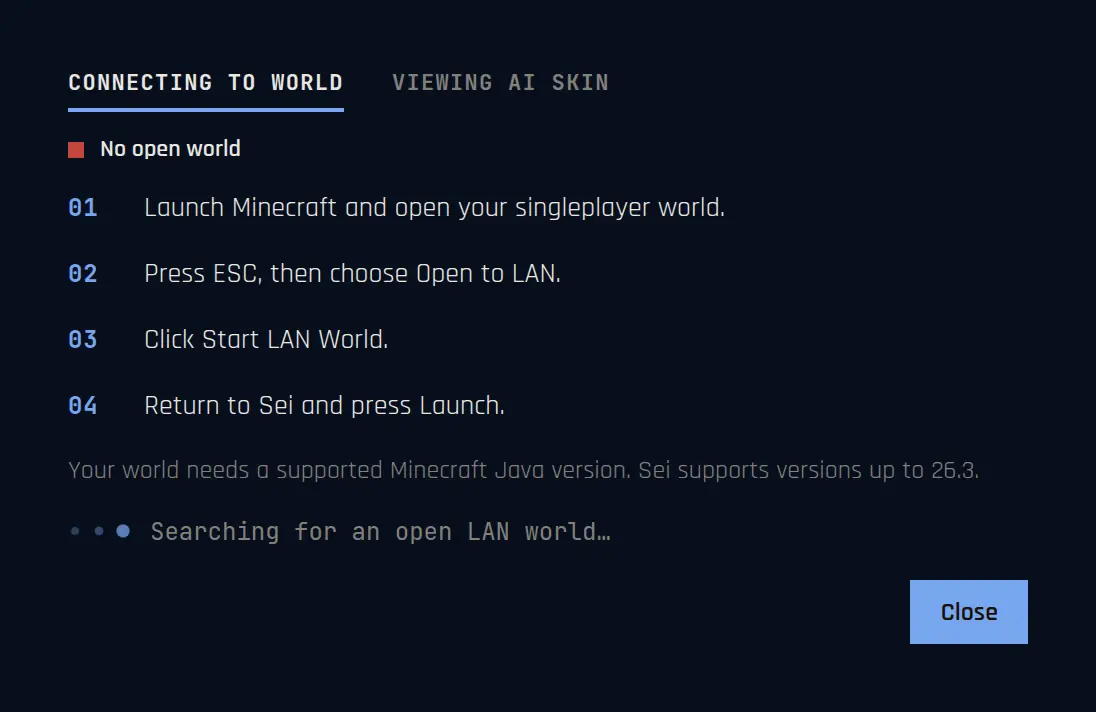
- Open Minecraft with the Sei profile. The easy way: click Start Minecraft in Sei, then press Play in the launcher.
- Open a singleplayer world.
- Press Esc, then choose Open to LAN.
- Click Start LAN World.
- Go back to Sei and press Launch.
Sei finds your world on its own and your companion joins in a few seconds.
Windows asks if Java can use the network? You can press Cancel. Sei joins your world from the same computer, so it still works.
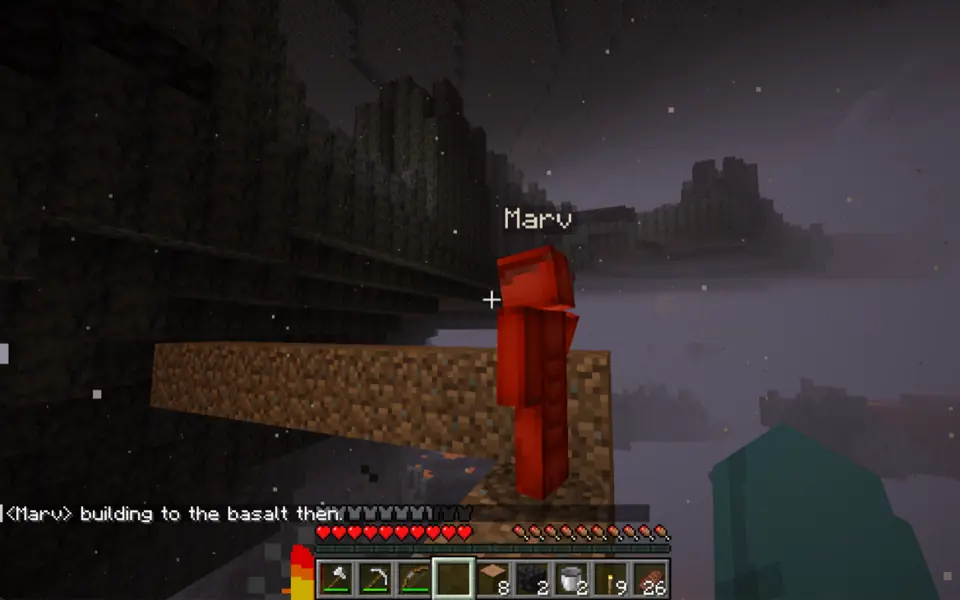
While you play
Sei shows what your companion is doing, its health and inventory, and a map. The buttons on the right:
| Pause | Freezes your companion in place. |
| Reactive | Your companion follows your simple instructions. Uses less of your usage. |
| Proactive | Your companion plays alongside you and makes its own plans. Uses more. |
| Disconnect | Your companion leaves the world. |
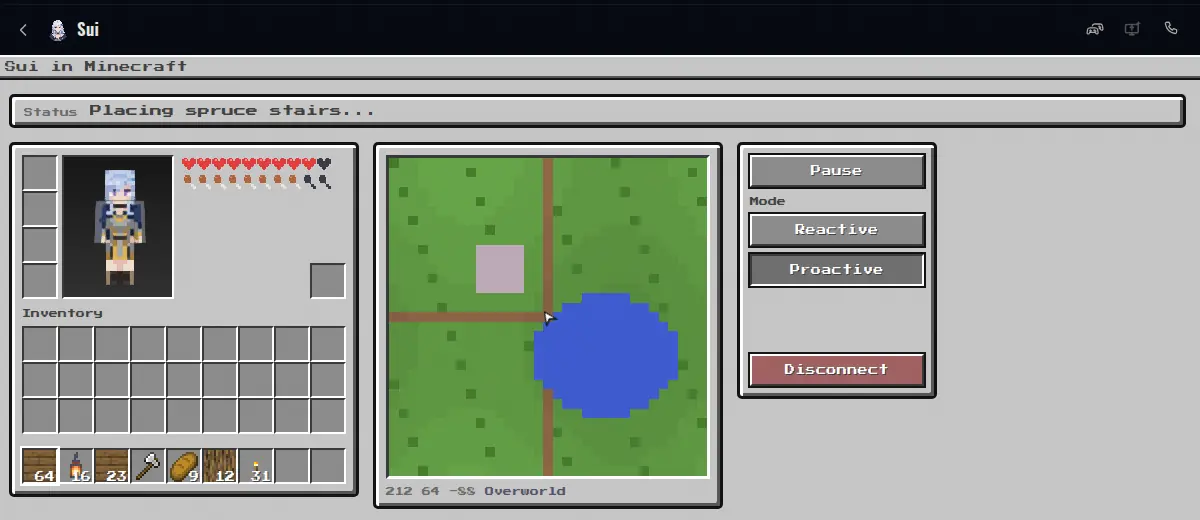
To stop what your companion is doing, type stop in Minecraft chat.
You can bring more than one companion into the same world. Each one needs its own in-game username. You can change it in the companion's Appearance settings.
Having trouble? See Minecraft not connecting.
Stardew Valley
Your companion joins your farm and works alongside you. It can till, water, plant, harvest, chop trees, mine, forage, fight, fish, use chests, ship items, and give you things. It can't craft, cook, talk to villagers, or join festivals yet.
What you need
- Stardew Valley 1.6.14 or newer for PC, from Steam or GOG.
Steps
- Close Stardew Valley if it is open.
- Pick Stardew Valley in Play together and click Set up.
- Click Install SMAPI + Sei's helper. It is about 42 MB. SMAPI is the standard Stardew mod loader.
- Click Launch Stardew Valley (with Sei).
- Load your farm.
- Go back to Sei and press Launch.
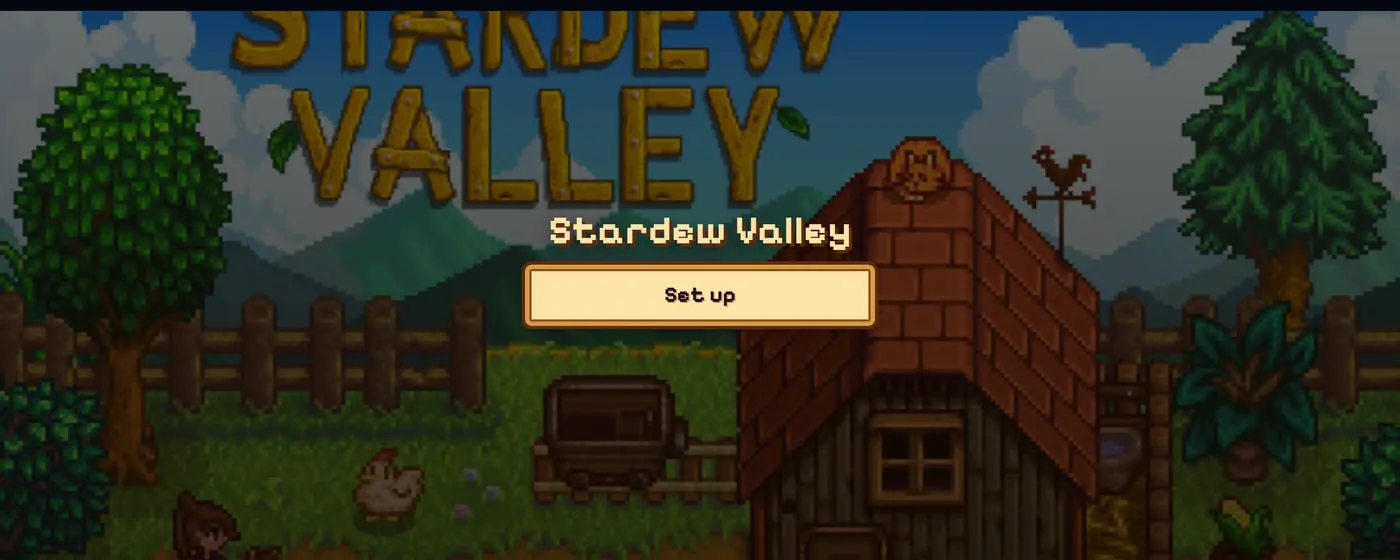
Steam achievements on Windows: when Sei starts the game, Steam achievements don't unlock. To keep them, copy the launch option Sei shows, add it in Steam (Stardew Valley > Properties > Launch Options), and start the game from Steam instead.
Don't Starve Together
Your companion joins your world as its own survivor.
What you need
- Don't Starve Together on Steam.
- You host the world. Other players who join don't need to install anything.
Steps
- Pick Don't Starve Together in Play together and click Set up to add Sei's helper. This is a one-time step.
- Launch Don't Starve Together. On the Mods Installed notice, press I understand.
- Click Host Game, pick a world, choose your survivor, and click Go.
- In Sei, pick a survivor for your companion, or click Let [name] choose, then launch.
One companion can join each world.
Chess
- Pick Chess in Play together.
- Choose White, Random or Black, then Launch.
The first game downloads a small chess brain, about 21 MB. Games have no clock. Your companion chats about the game as you play. You can Flip board, Offer draw, Resign, or play a Rematch.
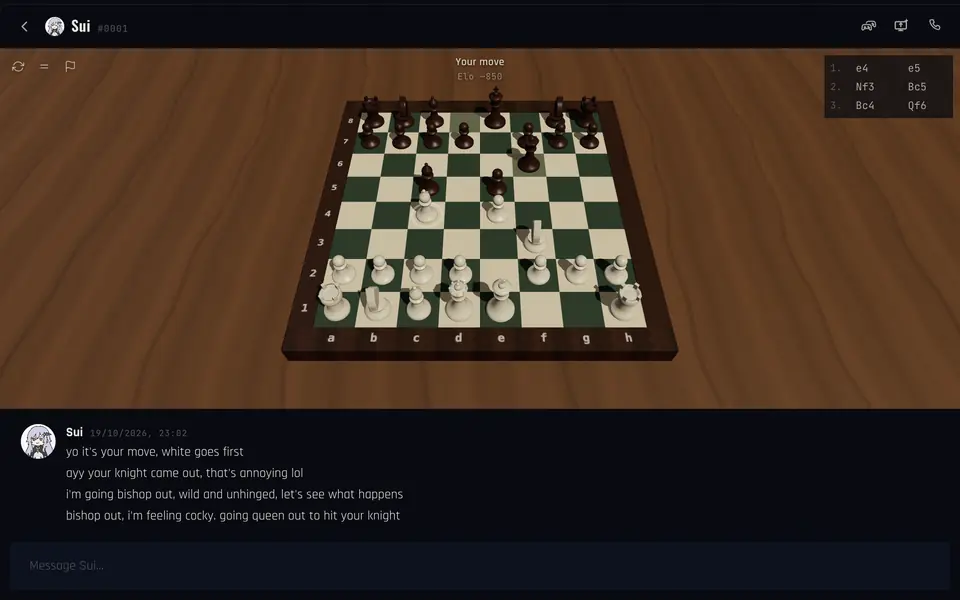
Your companion's strength adapts to you by default. To set it yourself, open Edit companion > Games and pick a rating from 400 to 2000. This works for companions you created.
Draw!
A drawing and guessing game. You take turns: one draws, the other guesses.
- Pick Draw! in Play together and press Start!
- When it is your turn, pick one of three words and draw it. You have 3 minutes.
- When your companion draws, type your guesses in the chat, or say them on a call.
A game is three rounds. Your very first game is one quick round. Draw! needs an AI model that can see images. Sei Cloud has one.
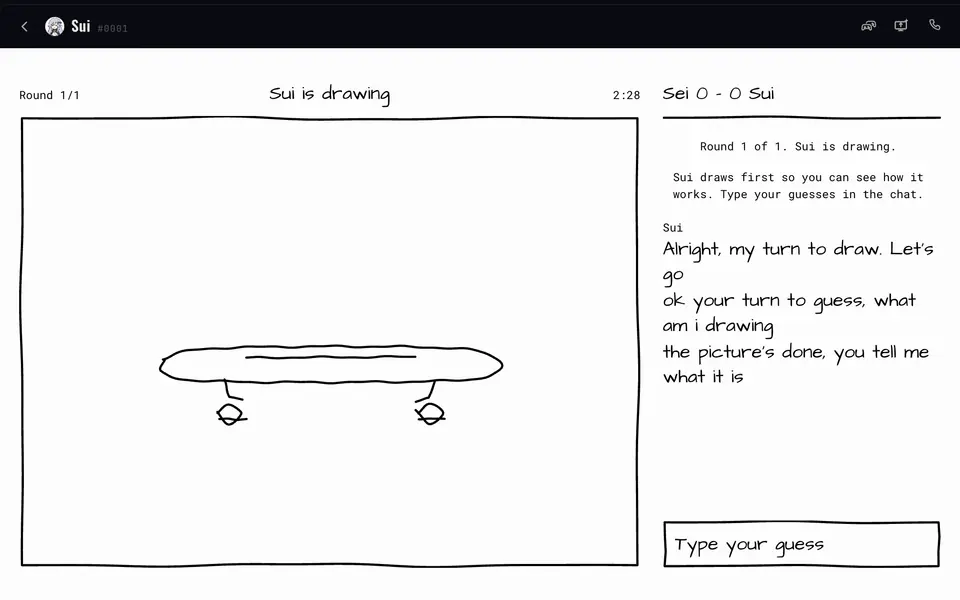
You can also play a free version in your browser at sei.gg/draw.
Any other game: Backseat
For games without a dedicated mode, your companion can watch your screen and talk with you while you play. It sees what you see and hears the game sound, but it does not control the game.
- In the chat, click Backseat (beta) at the top. This starts a voice call.
- Pick the game window and click Share.
The screen sharing guide has more detail.
Roblox works this way. Pick Roblox (Backseat) in Play together, tell Sei which experience you are playing (or skip), and open Roblox. Sei waits for the Roblox window and starts watching.