
Docs / Create and edit companions
Create and edit companions
This guide covers adding companions, creating your own, and changing their persona, voice, card image, Minecraft skin, avatar, knowledge and memory.
Add a companion
Click + in the left bar. You get four choices:
- Meet my companion. Sei matches you with a companion made for you. Needs a Sei account.
- Create new companion. Make your own from a description.
- Connect existing companion. Bring a companion you already have on another platform.
- Explore available companions. Browse companions other people made, in World.
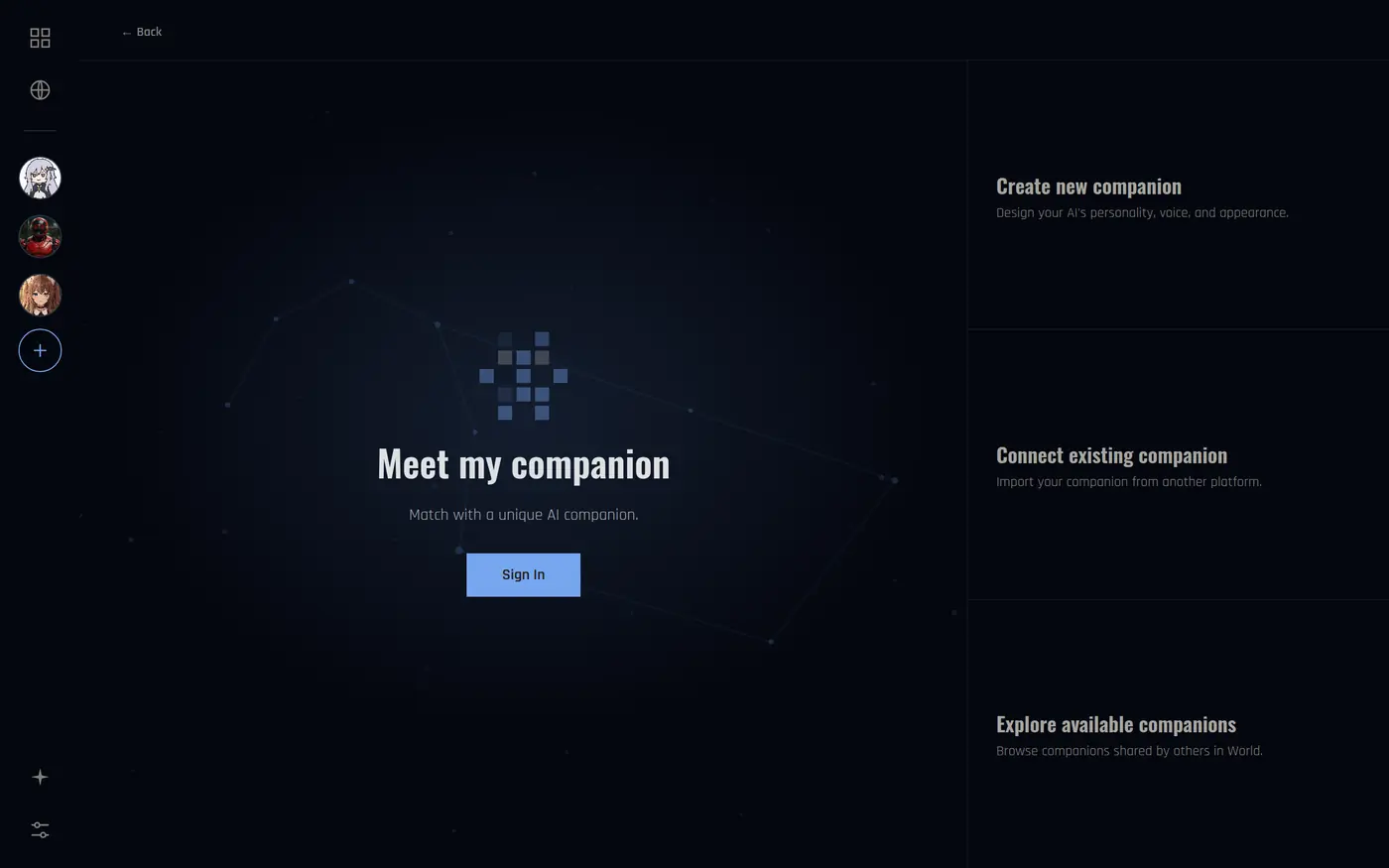
You can have up to 4 companions in your party, and create up to 4 new companions a day.
Create your own
- Click +, then Create new companion.
- Give them a name.
- Under Who are they?, describe them in your own words: personality, how they talk, what they like. A few sentences is enough.
- Leave Expand my prompt on if you want Sei to turn your description into a fuller persona. Turn it off to use your words exactly.
- Click Create.
- Sei then helps you pick a card image, a Minecraft skin and a voice. Each step is optional, and you can change all of it later.
If you are signed in, you can also choose whether other players can see and invite your companion.
Bring a companion from somewhere else
Choose Connect existing companion to import a companion you made on another platform. At the Bring their memories step, you can upload their memories and knowledge as .md, .txt or .docx files. Don't upload the AI prompt you used on the other platform here.
The companion page
Click a companion's picture or name to open their page. It has three tabs: Description, Game and Avatar. Use the Chat and Play buttons at the bottom to talk or start a game. The gear button opens Companion settings:
- Edit companion. Change everything below.
- Knowledge. Files and notes your companion can read.
- Card image.
- Reset memory.
- Unbind. Removes the companion for good. This can't be undone.
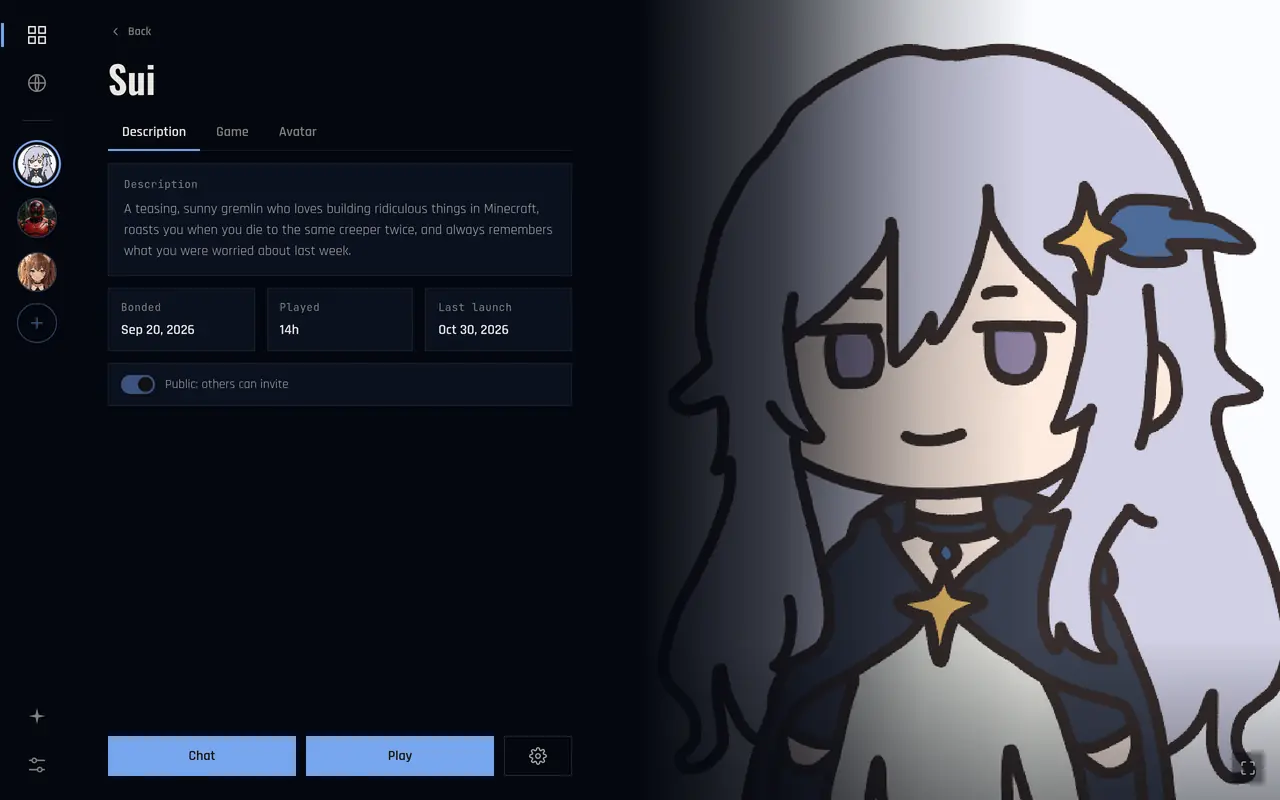
You can edit companions you created. Sui and companions from World or Meet my companion can't be edited.
Edit a companion
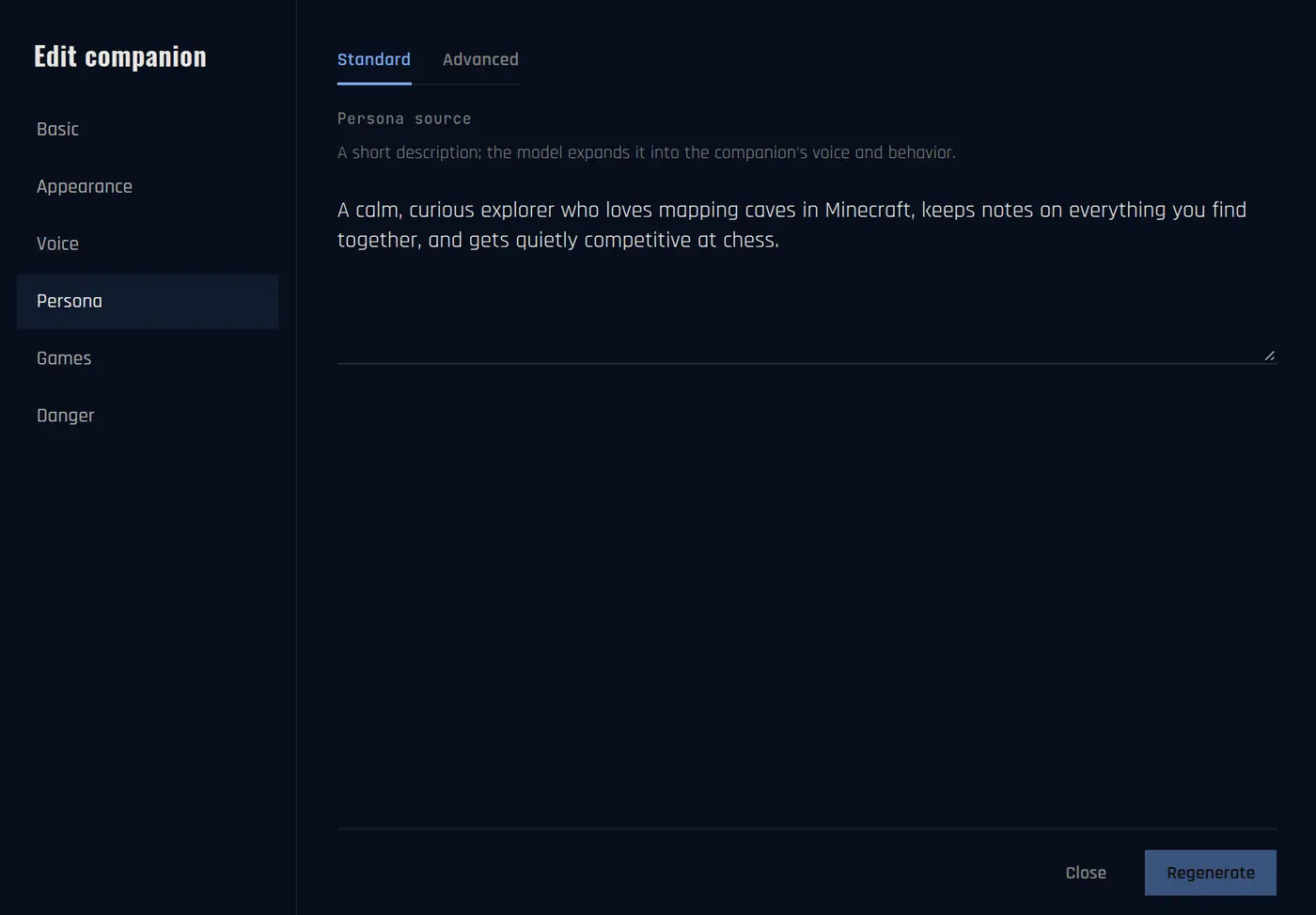
Open Companion settings > Edit companion. The menu on the left has these sections:
| Basic | Name and description. |
| Appearance | Card image, Minecraft skin and in-game username. |
| Voice | Pick a voice and tune it. |
| Persona | Their personality and how they talk. |
| Games | Game settings, like chess strength. |
| Danger | Reset their memory, or unbind (remove) the companion. |
Persona
The persona decides who your companion is. There are two modes:
- Standard. Edit the short Persona source in plain words, then click Regenerate. Sei rewrites the full persona from it.
- Advanced. Edit the raw prompt directly. Your text is used exactly as written.
Card image and Minecraft skin
- Card image: click Change to upload a picture, Remove to clear it, or Regenerate to make a new one (up to 3 times).
- Minecraft skin: upload a 64x64 PNG skin, or search a Minecraft username to use that player's skin. Then click Apply skin.
- In-game username: the name other players see in Minecraft.
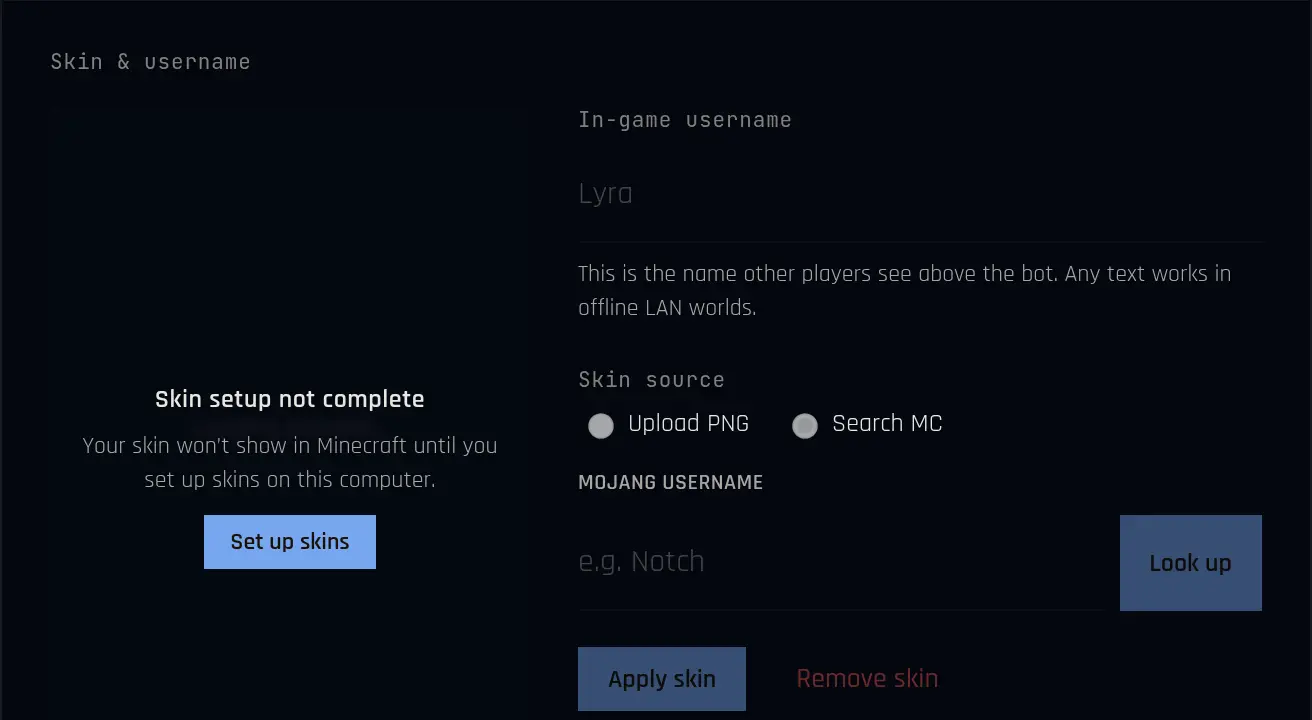
If you see Skin setup not complete, click Set up skins. Skins show in Minecraft once the Minecraft setup is done.
To make a brand new skin from the card image, open the companion page, go to the Game tab and click Make Minecraft skin. This uses credits and needs you to be signed in.
Voice
Pick Auto to let Sei choose a voice, No voice for silence, or any voice from the list. Use Pitch and Calmness to tune it. Changes save when you click Done.
Live2D avatar
On the companion page, the Avatar tab lets you switch between a Static picture and a moving Live2D model (beta). Click Upload Live2D model (.zip) to add one. It stays on your computer. The limit is 128 MB.
Knowledge
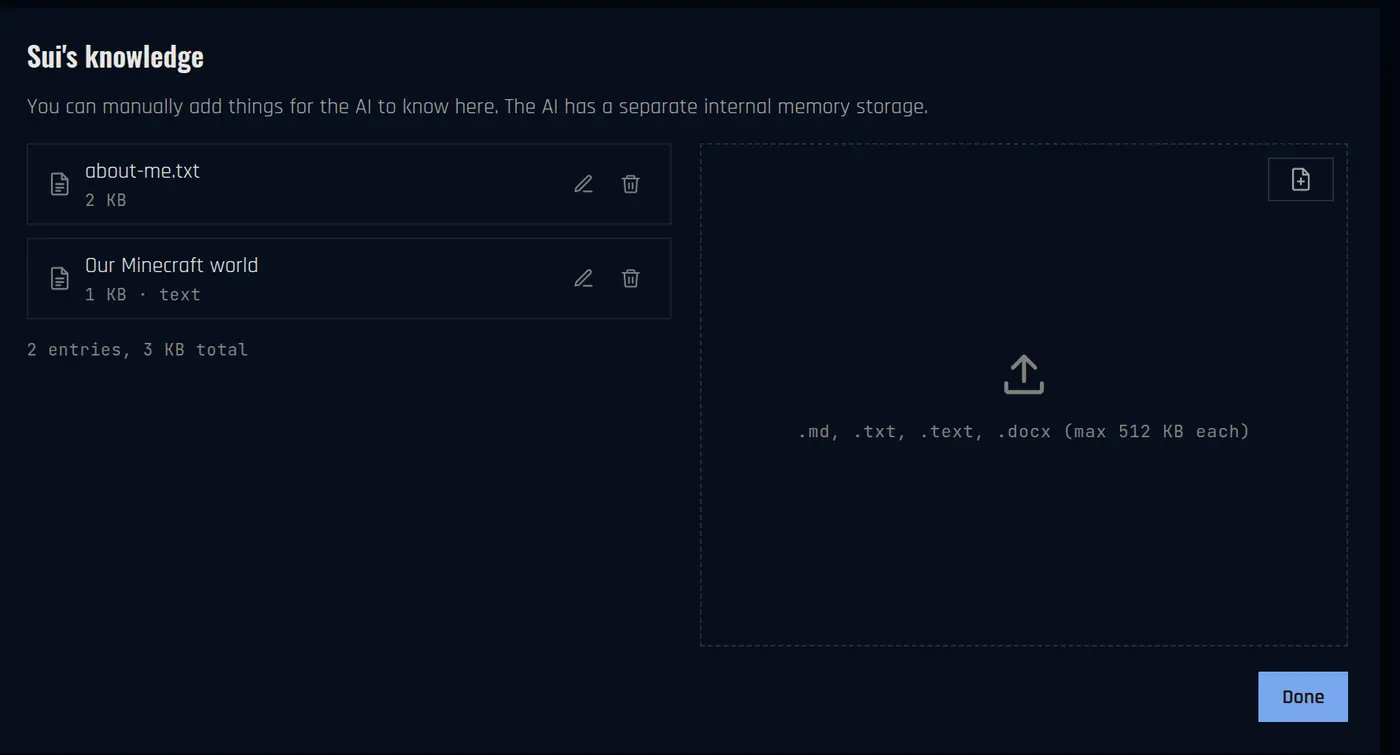
Knowledge is a place for things you want your companion to know, like notes about you or your Minecraft world.
- Open Companion settings > Knowledge.
- Drop in files, or click Add text context to type something.
Files can be .md, .txt or .docx, up to 512 KB each, and up to 20 entries.
Memory
Your companion remembers your conversations and what you did together. Memories are stored on your computer.
- To clear one companion's memory, open Companion settings > Reset memory.
- To clear every companion's memory, go to Settings > Danger > Reset all companion memories.
Share your companion
On the companion page of a companion you made, switch Private to Public. Then other players can invite them. Your memories with them are never shared.