
Docs / Call your companion
Call your companion
This guide covers voice calls with your companion: starting a call, the call buttons, interrupting, captions, sharing your screen, and calling more than one companion.
Start a call
- Open a chat with your companion.
- Click the phone icon (Voice call) at the top right. You can also click Call in the companion's side panel.
- Your companion picks up and says hi first. Just start talking.
There is no button to hold while you talk. Sei listens all the time during a call and notices when you speak.
The first call
Your first call may ask you to install the voice module. It is a one-time download of about 40 MB. Click Install.
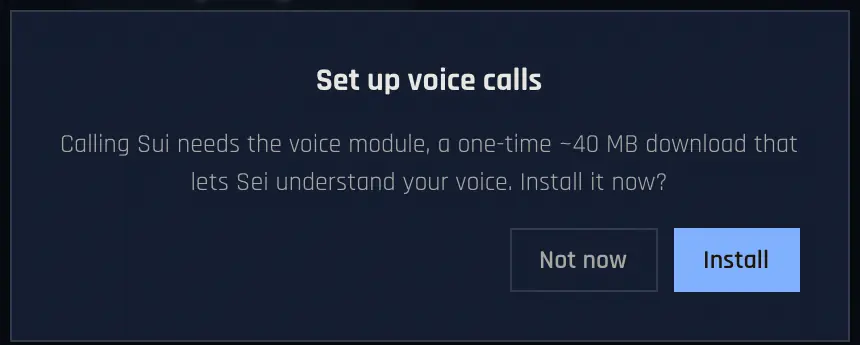
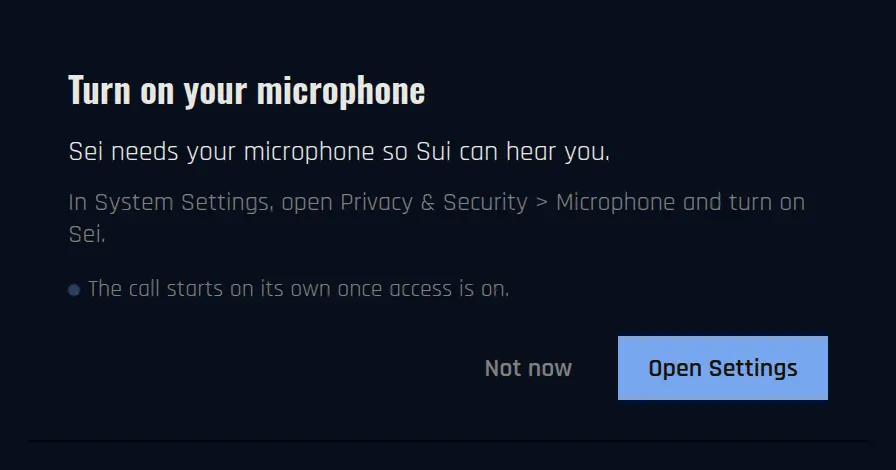
Sei also needs access to your microphone. If it doesn't have it yet, you see Turn on your microphone:
- Mac: click Open Settings, then in Privacy & Security > Microphone, turn on Sei.
- Windows: click Open Settings, then turn on Microphone access and Let desktop apps access your microphone.
The call starts on its own once access is on.
The call buttons
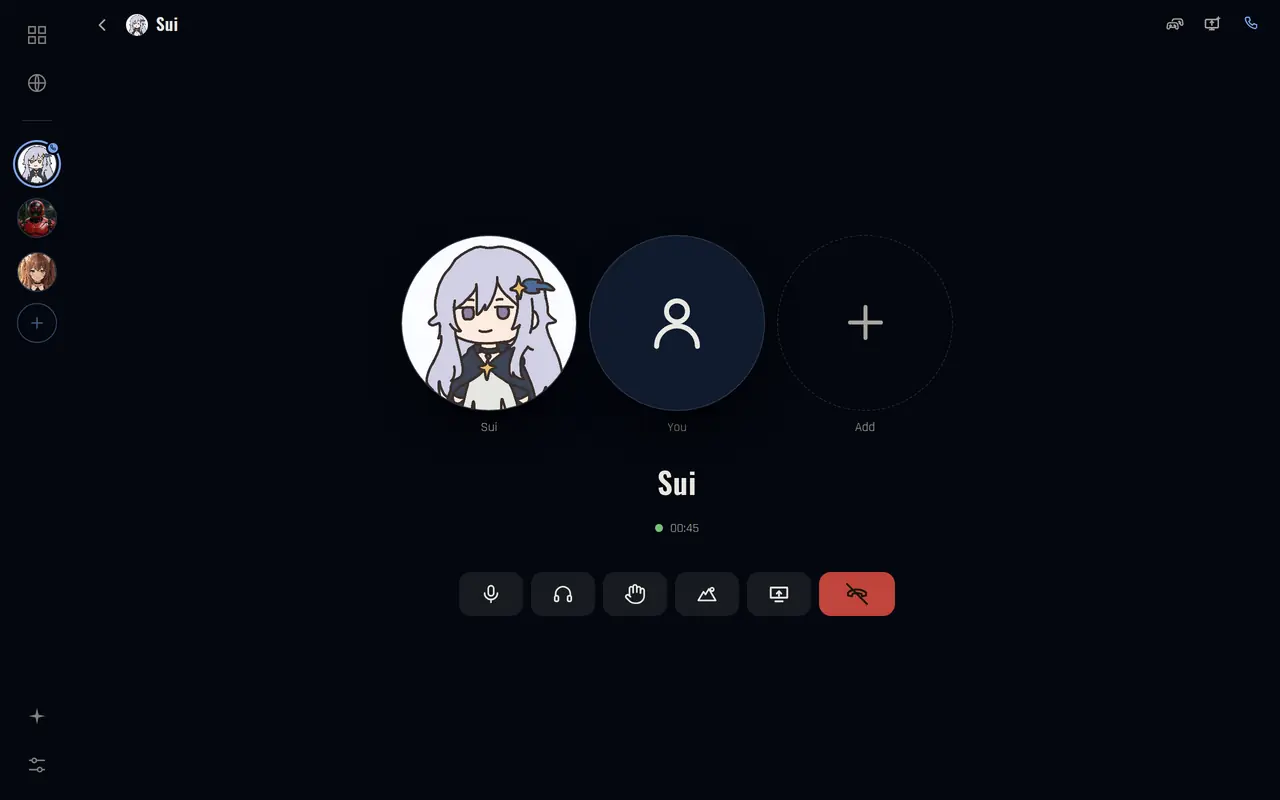
| Button | What it does |
|---|---|
| Microphone | Mute or unmute yourself. |
| Headphones | Deafen: you stop hearing your companion. Click again to undeafen. |
| Hand | Interrupt. Stops your companion mid-sentence so you can talk. |
| Scene | Switch between the animated scene and the plain call view. |
| Screen | Share your screen, or stop sharing. |
| Red phone | Leave the call. |
Hover over any button to see its name.
Interrupt your companion
You can cut in any time. Two ways:
- Just talk. When you start speaking, your companion stops and listens.
- Click the hand. It appears once the call is live. Your companion stops talking right away.

Don't see the hand? It comes in a newer version of Sei. Update Sei (see how to update). Until then, just talk over your companion.
Captions
Captions show what your companion says, and what Sei heard you say, as text during a call.
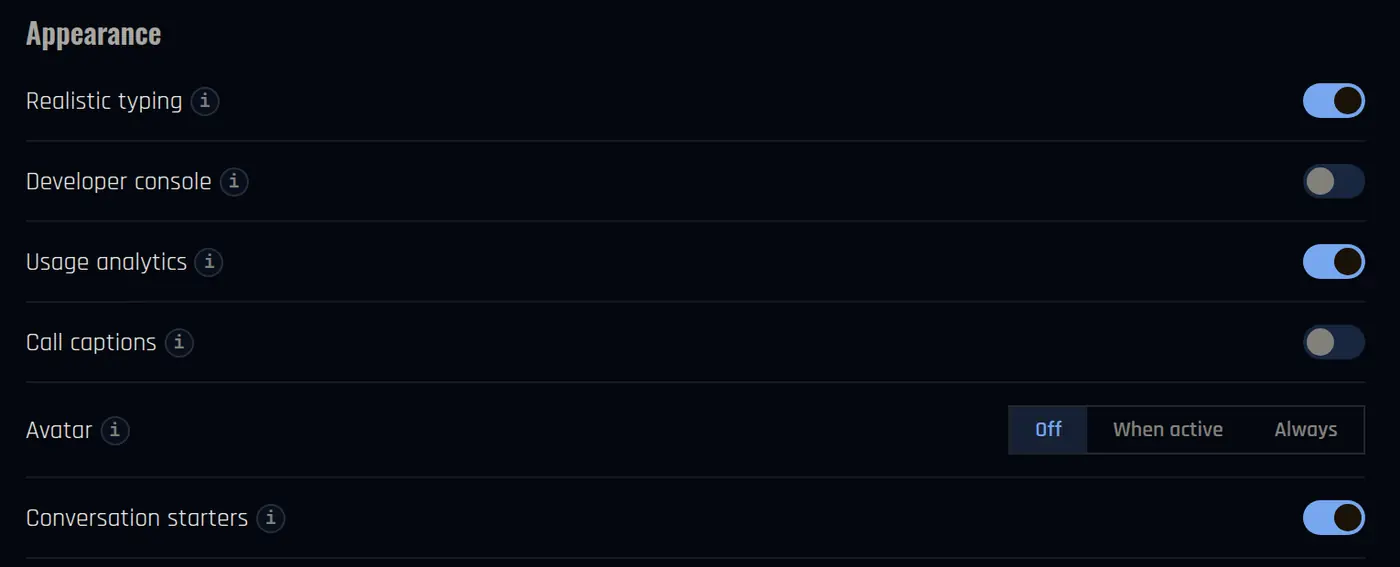
- Open Settings > Appearance.
- Turn on Call captions. They are off by default.
Keep your companion on screen
In the same place, Avatar shows your companion in a small floating window on top of your other apps. It shows their picture, or a Live2D model if they have one:
- Off: never.
- When active: during calls, games and screen sharing.
- Always: the whole time Sei is open.
Hover over the floating window to move or resize it. It has its own buttons to mute, interrupt, and show captions.
Share your screen
Your companion can watch your screen and talk about what it sees. This is called Backseat.
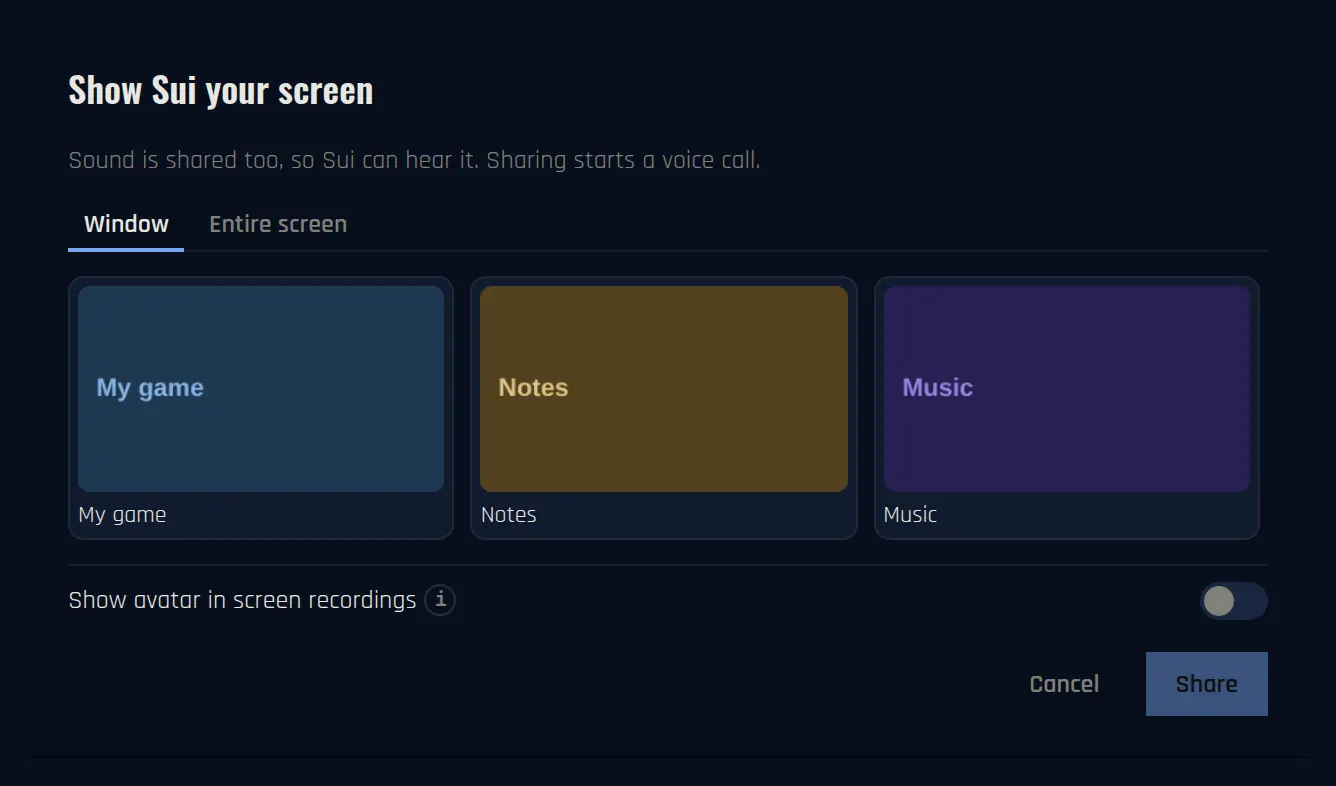
- In a call, click the screen button. Or, in the chat, click Backseat (beta) at the top. That starts a call for you.
- Choose Window to share one app, or Entire screen.
- Click the window or screen you want, then Share.
Sound is shared too, so your companion can hear your game. Show avatar in screen recordings decides whether the floating companion window shows up in what you share.
Good to know:
- Your companion watches and talks. It does not control your game.
- It can save short clips of fun moments.
- You can't share your screen while that companion is playing Minecraft with you.
- Sharing needs an AI model that can see images. Sei Cloud has one. If you use your own key, pick a model with vision.
Mac: allow screen recording
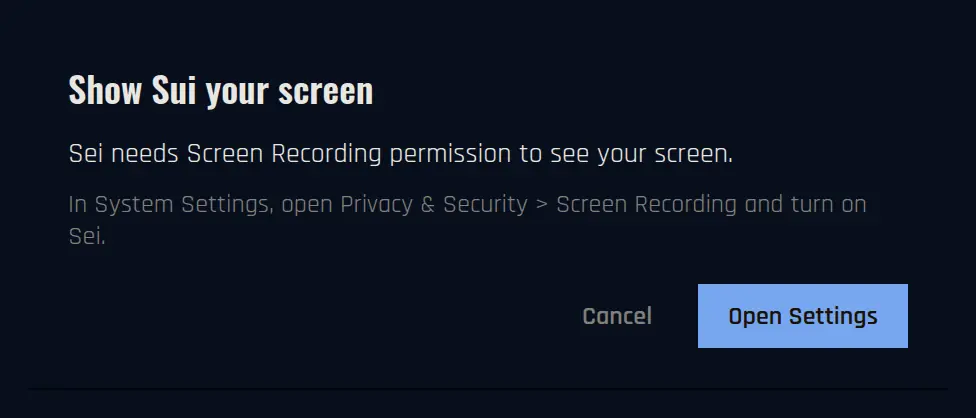
The first time, macOS asks for permission. Click Open Settings, turn on Sei in Privacy & Security > Screen Recording, then go back to Sei and click I turned it on. If Sei still can't see your screen, click Restart Sei and continue.
Group calls
You can call more than one companion at once.
- Start a call with one companion.
- Click the + tile (Add a companion).
- Pick companions and click Add to call, then Done.
Only companions in your party can join. Everyone in the call hears you, and they can talk to each other. One voice plays at a time. If you share your screen, only the first companion in the call sees it.
Languages
Your companion can talk with you in English, Chinese, Japanese, Korean, French or Spanish. There is no setting for it. Speak in your language on a call, and once Sei clearly hears it a few times, your companion switches to it.
This automatic switch works with Sei Cloud voice recognition, and with ElevenLabs Scribe if you use your own key.
To change the language of the app's menus and buttons, go to Settings > Language.
Good to know
- On Sei Cloud, calls use your weekly usage and you need to be signed in.
- If nobody says anything for 10 minutes, Sei asks Are you still there? Click I'm here to keep the call going.
- Sei uses your computer's default microphone. To use a different mic, change the default in your system sound settings.
- You can stay in a call while you play a game together. A call bar shows at the bottom of the game screen.