
Docs / Troubleshooting and FAQ
Troubleshooting and FAQ
This guide covers fixes for common problems (updates, microphone, screen sharing, Minecraft, usage limits) and answers to common questions.
Update Sei
Sei updates itself. How it looks depends on the update:
- Bigger updates show Update available. Click Update now, or Later to do it another time.
- Small fixes download quietly and install the next time you quit Sei.
- When an update is ready, an Update Sei button appears at the bottom of the left bar. Click it and confirm Restart to update? to install now. Sei closes and opens again.
To check by hand, open Settings > About and click Check now. Your version number is shown there too.
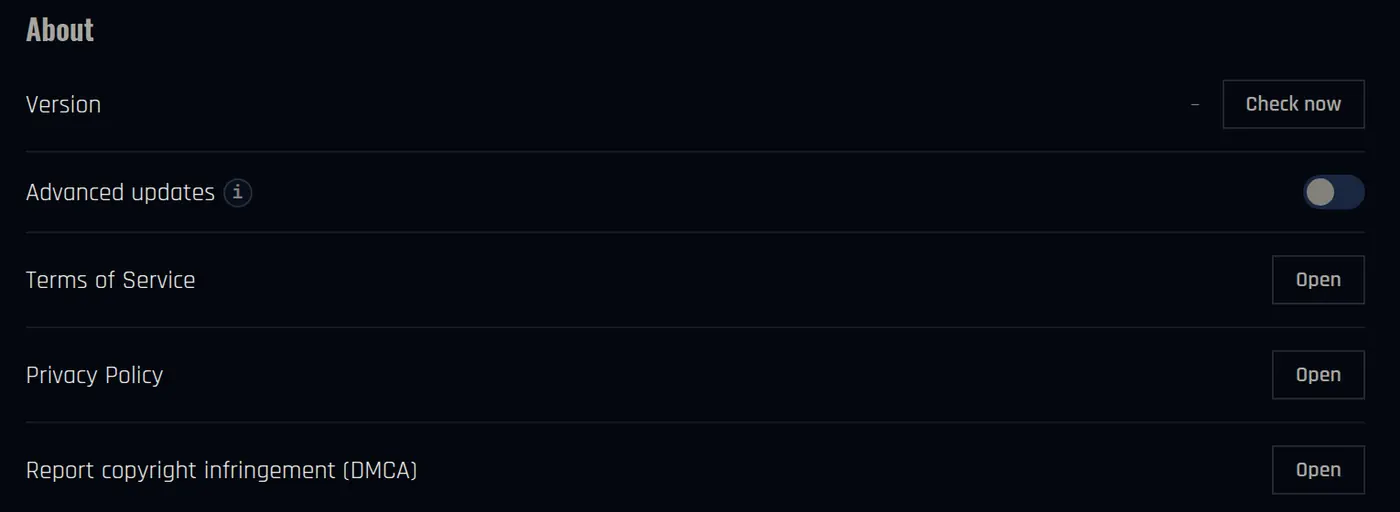
Advanced updates gets you early test versions (betas). Leave it off unless you want to try new things before everyone else.
Your companion can't hear you
- Check that you are not muted in the call. The microphone button should not be crossed out.
- Check that Sei has microphone access.
- Mac: System Settings > Privacy & Security > Microphone. Turn on Sei.
- Windows: Settings > Privacy & security > Microphone. Turn on Microphone access and Let desktop apps access your microphone.
- Sei uses your computer's default microphone. If you have more than one, set the right one as the default in your system sound settings, then start a new call.
If Sei says No microphone was found, connect a microphone and try again.
You can't hear your companion
- Check that you have not deafened the call. The headphones button should not be crossed out.
- Check your computer's volume and output device.
- Check that the companion has a voice. In Edit companion > Voice, it should not be set to No voice.
Screen sharing doesn't work
- Mac: Sei needs Screen Recording permission. Go to System Settings > Privacy & Security > Screen Recording, turn on Sei, and restart Sei.
- Your companion can't watch your screen while it is playing Minecraft with you. Disconnect it from Minecraft first.
- If you use your own API key, pick a model that can see images. See AI options.
Minecraft: companion can't join
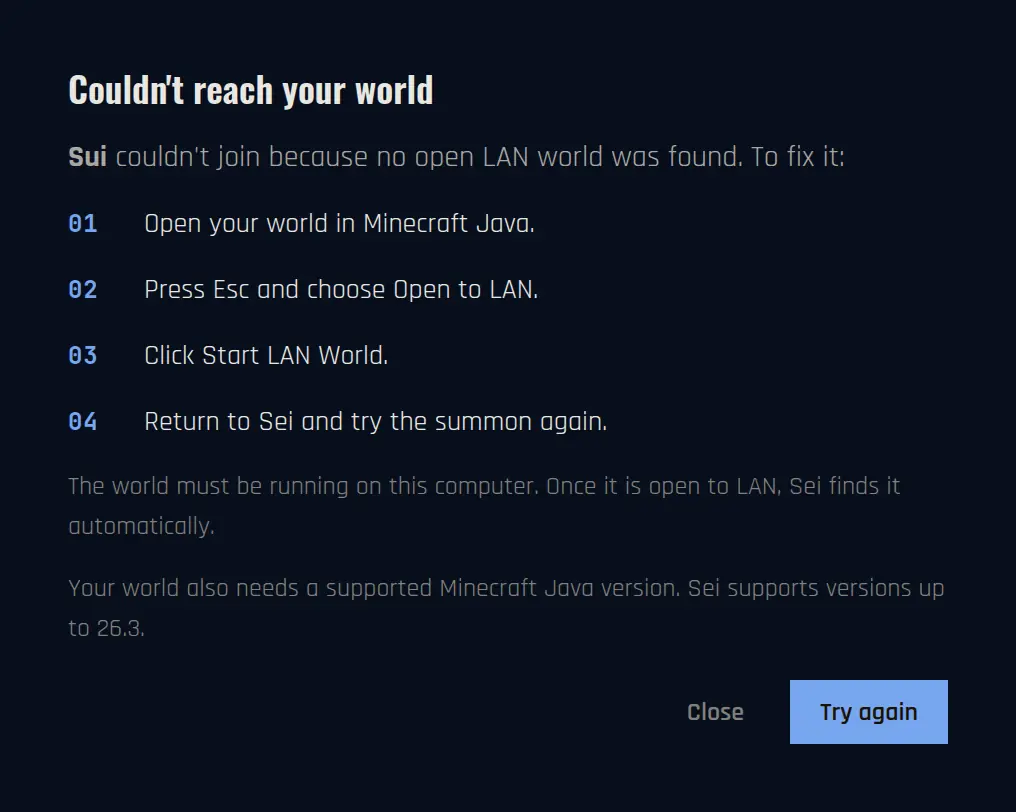
If Sei says Couldn't reach your world, Sei didn't find an open LAN world. Check these:
- Minecraft: Java Edition is running on the same computer as Sei.
- You are inside a singleplayer world, not on the title screen.
- You opened it to LAN: press Esc, choose Open to LAN, then Start LAN World.
- Then go back to Sei and click Try again.
Other messages you may see:
- This world needs mods. Sei joins as a normal Minecraft player, so it can't get into a world that requires mods. Your world is not changed. Try a world without those mods.
- Sei can't join Forge or NeoForge worlds. Play with the Sei profile, or another profile without Forge or NeoForge.
- Online mode. If you run your own server, set
online-mode=falseinserver.propertiesand restart it. If a mod opened the world to LAN, turn off its online mode option, or use Minecraft's own Open to LAN. - Name already in use. Two companions in the same world need different in-game usernames. Change one in Edit companion > Appearance.
- Windows asks if Java can use the network. You can press Cancel. It still works.
Bedrock, console and mobile editions are not supported. Also check your version is in the list under Which versions? in Sei.
Minecraft: companion has the wrong skin
Skins need the Sei profile and Minecraft 1.14 or newer. Plain Minecraft without the Sei profile, and Lunar Client, show a default skin. If Sei says Skin setup not complete, click Set up skins, or run the setup again from Settings > Games & search > Minecraft > Custom skins. Then start Minecraft with the Sei profile.
Connection problems
- You're offline. Check your internet, then click Retry.
- Connection lost during a game. Click Summon again to bring your companion back.
Usage limit reached
On Sei Cloud, you have a weekly usage allowance. When you use it up, you can:
- Wait for the weekly reset. Click the Plan button to see when it is.
- Click Top up to buy extra credits. They never expire.
- Upgrade your plan.
- Use your ChatGPT plan or your own AI. See AI options.
In Minecraft, Reactive mode uses less than Proactive.
Send us a bug report
Tell us what happened on Discord or on GitHub. You can also use Submit feedback on the plan screen. Log files help us a lot. You find them here:
- Mac:
~/Library/Application Support/Sei/logs(in Finder, press Cmd+Shift+G and paste this path) - Windows:
%APPDATA%\Sei\logs(paste this into the File Explorer address bar)
Start over
Settings > Danger has:
- Reset all companion memories.
- Factory reset. Erases everything Sei stored on this computer and restarts it like a fresh install. Data in your Sei account stays.
- Delete account.
These can't be undone.