
Docs / Get started with Sei
Get started with Sei
This guide covers downloading Sei, installing it on a Mac or Windows PC, signing in, and meeting your first companion.
1. Download Sei
Sei is free to download. Pick your computer:
The Mac button picks the right build for your Mac. If you have an older Mac with an Intel chip, you can also get the Intel Mac build directly.
2. Install on a Mac
- Open Sei-mac-arm64.dmg from your Downloads folder. (On an Intel Mac it is called Sei-mac-x64.dmg.)
- In the window that opens, drag Sei onto the Applications folder.
- Open Sei from your Applications folder, not from the disk image.
- When macOS asks if you are sure you want to open it, click Open.
macOS says it can't open Sei? Go to System Settings > Privacy & Security, scroll down, and click Open Anyway.
3. Install on Windows
- Open Sei-win-x64.exe from your Downloads folder.
- Wait for the progress bar to finish. You don't need to choose a folder or click through any steps.
- Sei opens on its own when it is done. Next time, open it from the Start menu.
4. First launch
The first time you open Sei, Sui, the Sei guide, walks you through setup. She asks:
- Whether you are new or already have an account.
- Your name.
- Where you heard about Sei. You can skip this.
She can also match you with a companion. Say Sounds fun to answer a few quick questions about who you like to have around and the art style you like, or Not interested to skip it.
5. Sign in
Next, sign in or create an account. You have a few choices:
- Email and password. New accounts enter a birthday, accept the Terms, and type the 6-digit code we email you. You must be 13 or older.
- Sign in with Google.
- Continue with ChatGPT. Uses your ChatGPT Plus or Pro plan for the AI. See AI options.
- Use my own API key, or Continue locally at the bottom of the sign-in screen. Skips the Sei account and runs on your own AI key or a local model. See AI options.
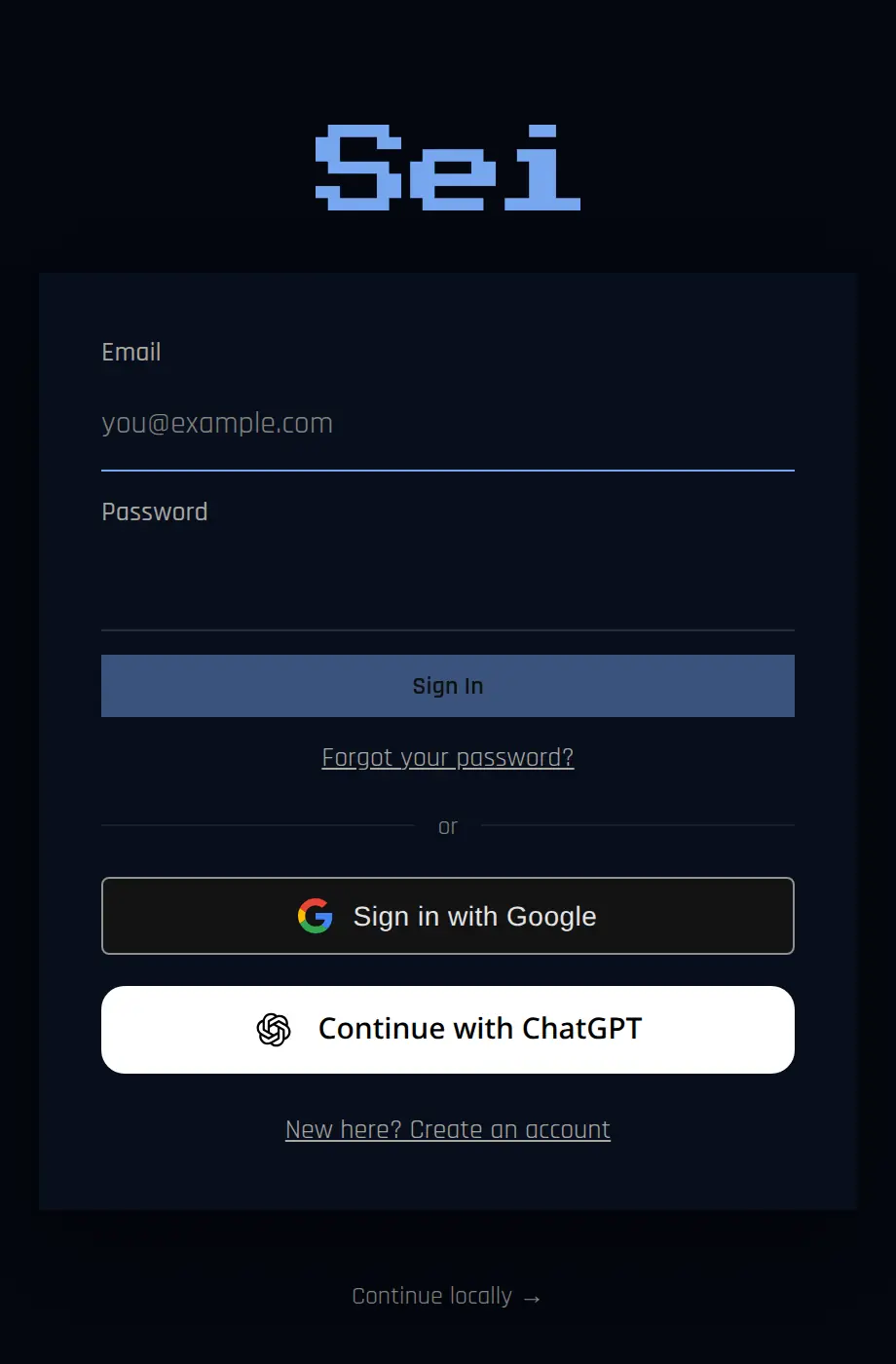
After sign-in, Sei sets things up and may show a short tutorial. You can follow it or press Skip tutorial.
6. Find your way around
The bar on the left side of Sei is your main menu. From top to bottom:
- Home. Your companions.
- World. Companions other people made that you can add.
- Your companions. Click one to chat with them.
- + to add a new companion.
- Plan. Shows how much of your weekly usage you have used.
- Settings.

7. Pick or create a companion
Sui is there from the start. To add more companions, click + in the left bar. You can:
- Create a new companion by describing who they are.
- Bring a companion you already have on another platform.
- Browse companions other people made.
The Companions guide has the details.
8. Start talking
Click a companion to open the chat. Type a message, or use the buttons at the top right of the chat:
- The phone starts a voice call.
- The gamepad opens Play together, where you pick a game.
- Backseat (beta) lets your companion watch your screen while you play anything.
Using Sei for free
Every account starts on the Free plan. It costs nothing and needs no card. Free includes chat, voice calls and games, up to a weekly usage allowance. Click the Plan button in the left bar to see how much you have left and when it resets.
If you run out, you can wait for the weekly reset, buy extra credits, or upgrade. You can also skip Sei's usage limits by using your own AI. See AI options and local setup.